Connect
Facebook
Twitter
Instagram
YouTube
Open Main Navigation
Close Main Navigation
Ask Yale Library
My Library Accounts
My Library Accounts
My Account (Orbis)
Special Collections
Scan and Deliver
Borrow Direct
Interlibrary Loan
Bass Media Equipment
Hours
Bass
8:30am - 12am
Lewis Walpole
8:30am - 4:45pm
Beinecke
9am - 4:30pm; Exhibitions open until 5pm
Lillian Goldman Law
YLS Community Only: 8am - 2am
Classics
8:30am - 5pm
Marx Science and Social Science
8:30am - 7pm
Cushing/Whitney Medical
7:30am - 10pm
Sterling
8:30am - 12am
Divinity
8:15am - 5pm
Yale Center for British Art
Gilmore Music
8:30am - 12am
Film Archive
10am - 4:45pm
Haas Family Arts
8:30am - 6pm
Manuscripts and Archives
9am - 4:30pm
Search this sight
Yale Library
Go to search
Find, Request, and Use
Find
Quicksearch
Articles+
Orbis
E-Journals
Databases
Archives at Yale
Digital Collections
FirstSearch (WorldCat)
Request
BorrowDirect
Interlibrary Loan
Purchase Request
Course Reserves
Use
Using Library Collections
Using E-resources
Using Special Collections
Help and Research Support
Help
Research Consultation
Personal Librarians
Subject Specialists
Accessibility Services
Research Support
Subject Guides
Course Guides
Copyright Basics
Digital Humanities
Geographic Information Systems (GIS)
StatLab
Research Data Management
Library Workshops
Citation Tools
Visit and Study
Visit Information
Special Collections
Printers and Scanners
Places to Study
Carrels and Lockers
Media Equipment
Room Reservations
Library Access and Use
Using Library Collections
Sterling Library Tours
Libraries / Locations
Bass
Beinecke Rare Book
Classics
Cushing/Whitney Medical
Divinity
East Asia
Gilmore Music
Haas Family Arts
Lewis Walpole
Lillian Goldman Law
Marx Science and Social Science
Sterling Memorial
Yale Center for British Art
Explore Collections
Explore
Collection Development
Digital Collections
EliScholar
Fortunoff Video Archive
Humanities Collections
International Collections
Lux: Collection Discovery
Primary Sources
About Us
About
Mission, Vision, Strategic Directions
Diversity, Equity, Inclusion, and Accessibility
Library News
Events
Exhibitions
Staff Directory
Working at Yale Library
Library Prizes
What can we help you find?
Quicksearch
Submit
Additional search tools for:
Articles
Archival Collections
Orbis
Databases
Digital Collections
Journals
Welcome to Yale Library
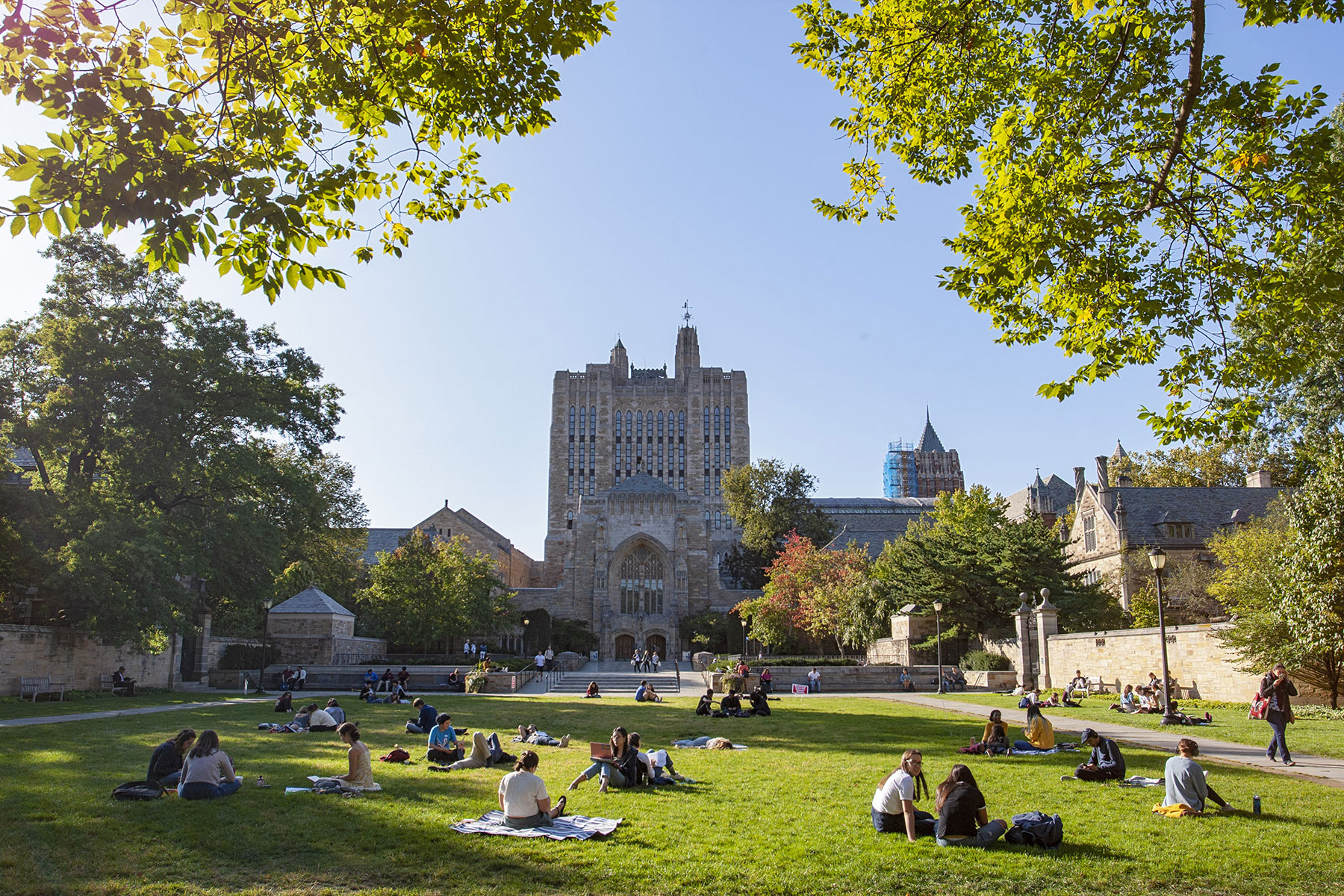
Sterling Memorial Library
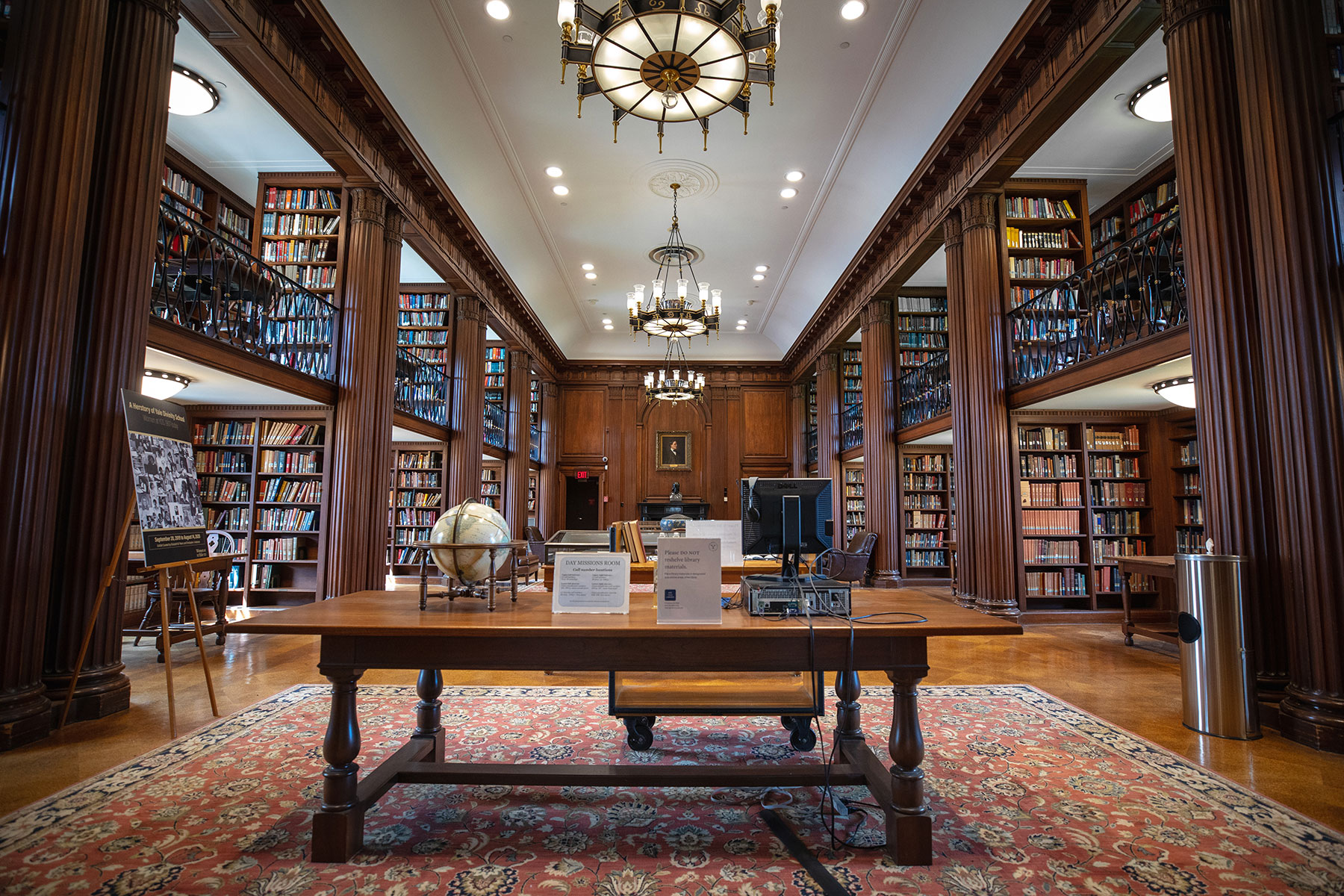
Divinity Library
Library Hours
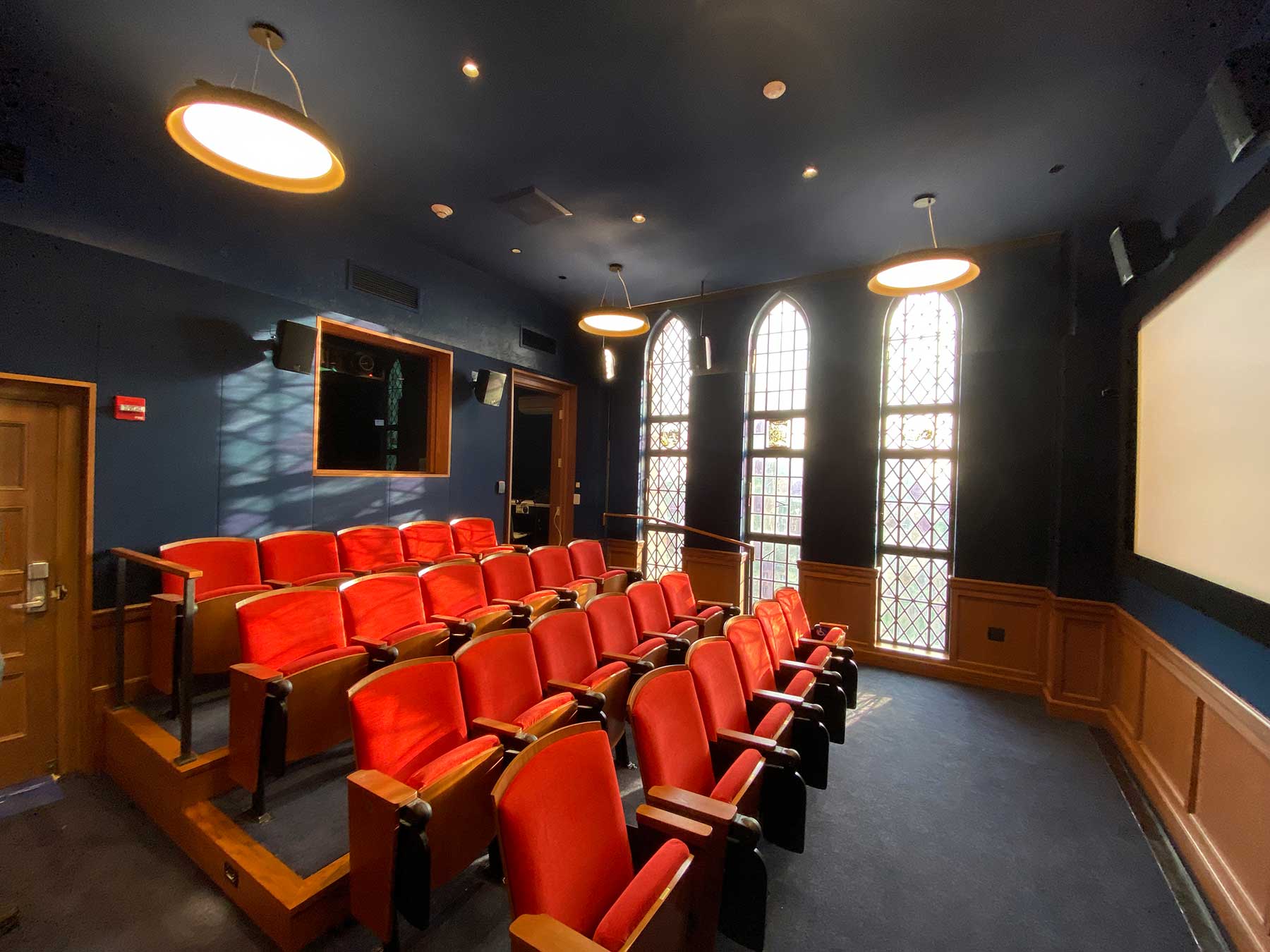
Yale Film Archive
Lewis Walpole Library
Explore Collections
Quicksearch
Find and access library materials, including licenced e-resources, digitized works, special collections, the law library catalog, and more.
Digital Collections
View millions of digital works and images from Yale Library’s collections—with new materials added every week.
LUX: Collection Discovery
Reveal and explore cross-collection connections among Yale libraries, archives, museums and galleries.
Read Latest News
All Library News
LSF at 25: A visual history of Yale University Library Shelving Facility
April 25, 2024
"Whaling Logbooks": The 2024 Senior Fellowship Exhibit opens April 29
April 23, 2024
Student curator Molly Smith ’25 honors champion of Yale College women
April 18, 2024
April 30: Submission deadline for undergraduate printing and graphic prizes
April 17, 2024
All Library News
Attend a Library Event
All Events
Apr
27
Saturday Introductory Tour of Beinecke Library
Apr
27
Saturday Introductory Tour of Beinecke Library
Apr
27
Saturday Introductory Tour of Beinecke Library
Apr
27
Saturday Introductory Tour of Beinecke Library
All Events
View an Exhibition
All Exhibitions
Whaling Logbooks: Records of a Maritime Industry
Printing the Most Popular Ancient Greek Historian: The Elinor Eisemann Collection of Flavius Josephus
Textile Tactics: Material, Method, and Concept in Artists' Publications
All Exhibitions